
Lorem ipsum dolor sit amet, consetetur sadipscing elitr, sed diam nonumy eirmod.
Lorem ipsum dolor sit amet, consetetur sadipscing elitr, sed diam nonumy eirmod.
7am App Store
Handle ticket sales directly at your venue on event day. Create orders on the spot, print tickets instantly, or download them as PDFs with scannable QR codes.
In this article:
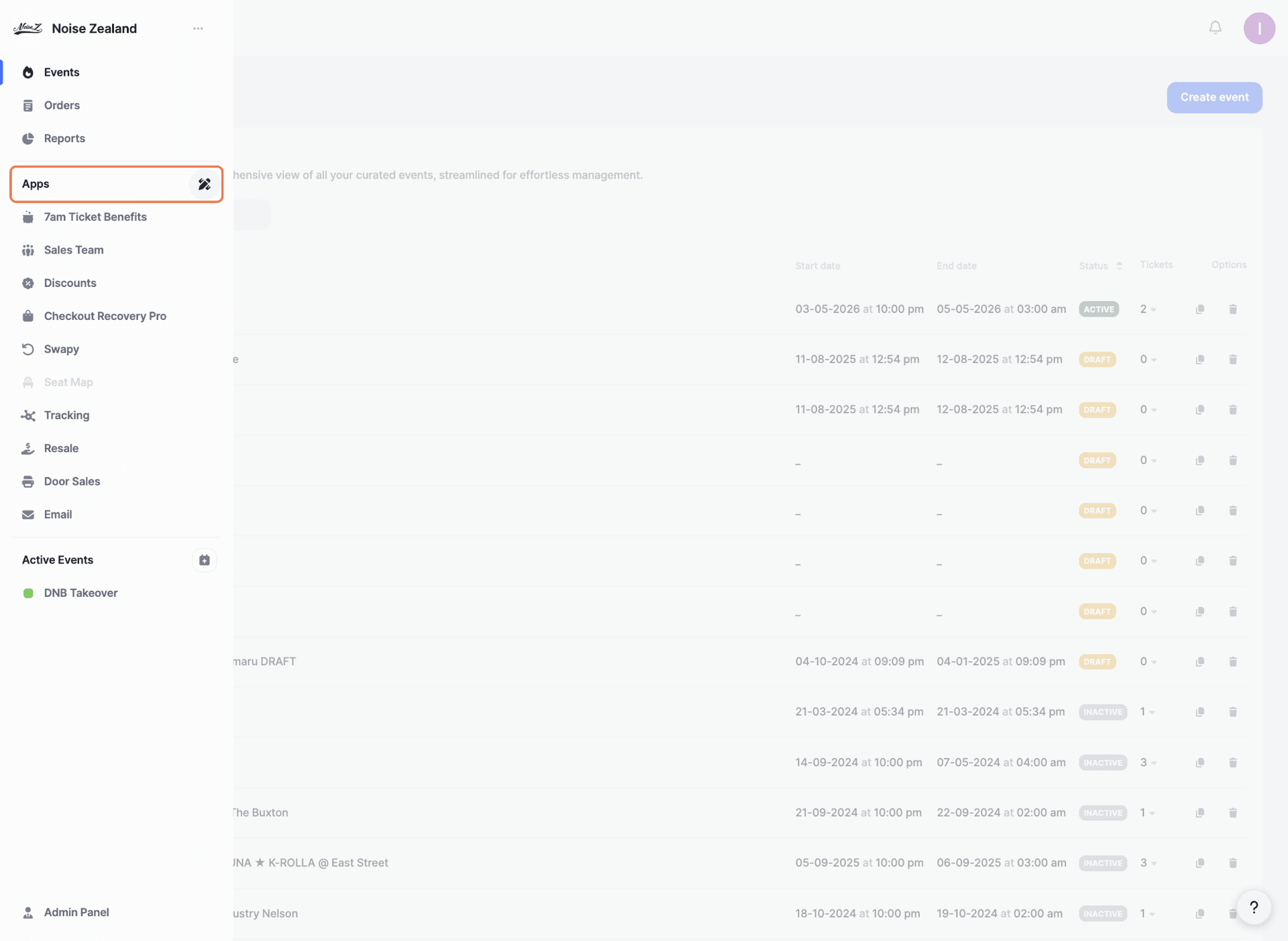
Click on 'Apps' in the left-hand menu.
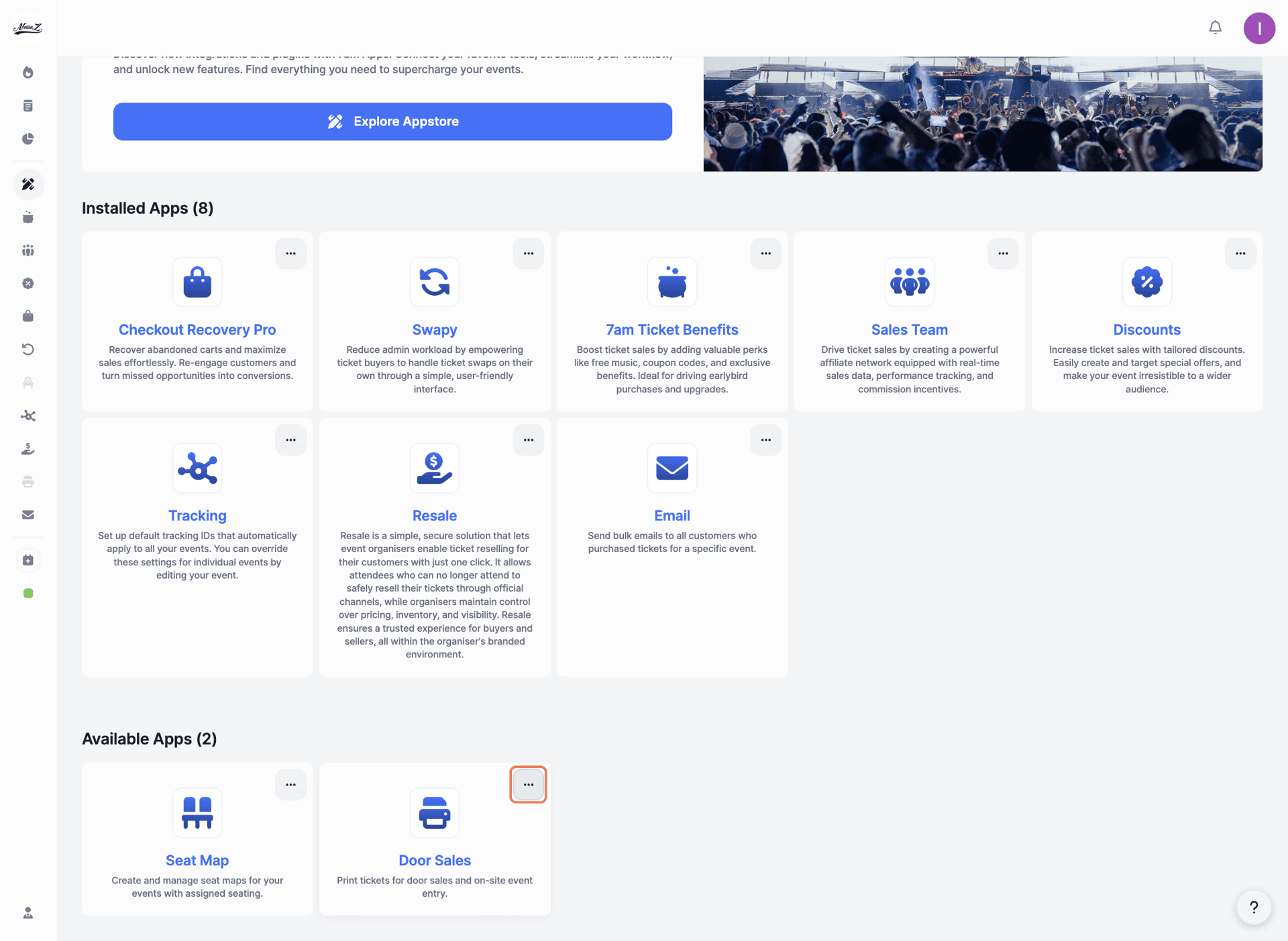
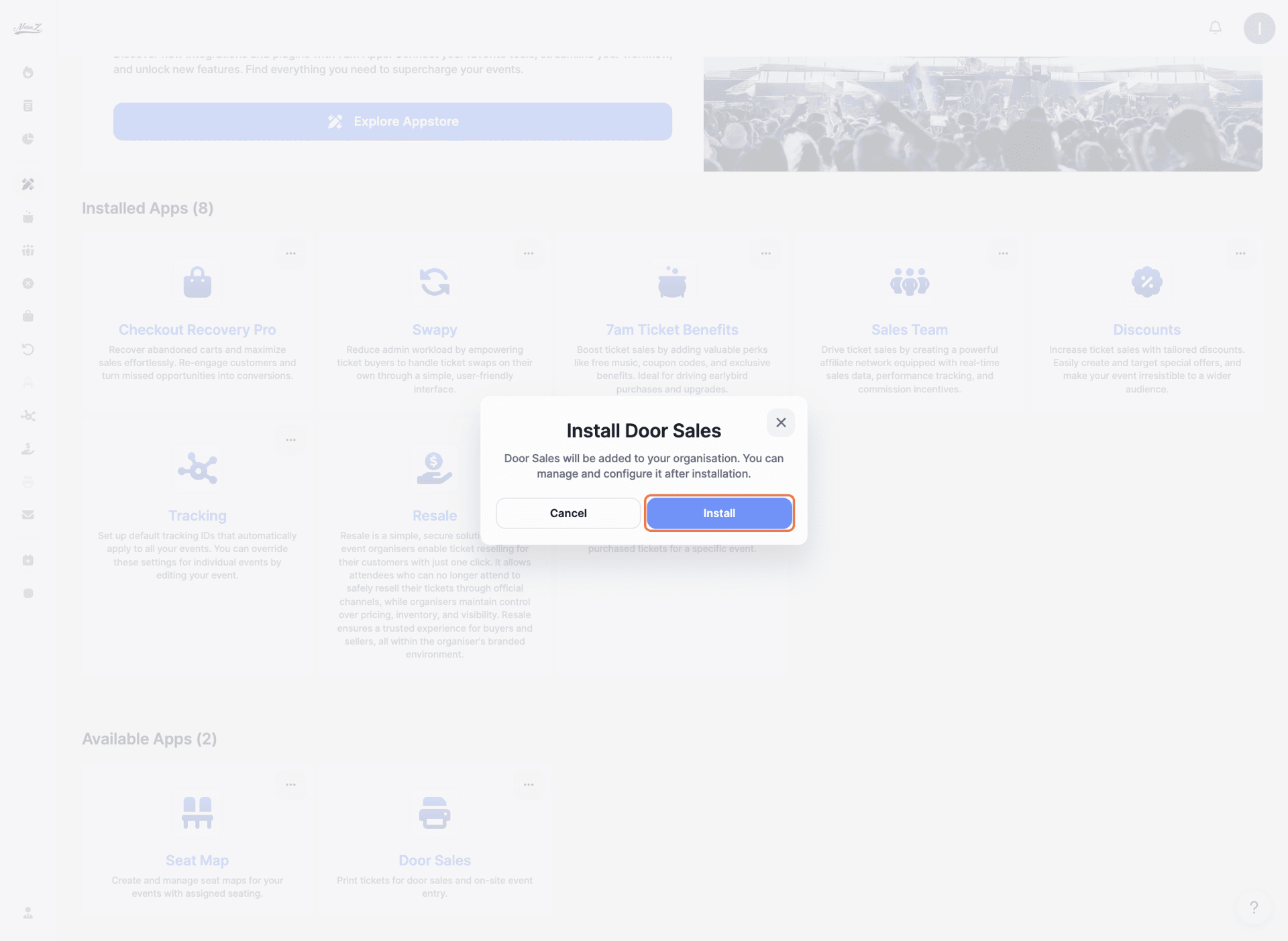
Under 'Available Apps', find 'Door Sales'. Click the three dots in the top-right corner of the app card.
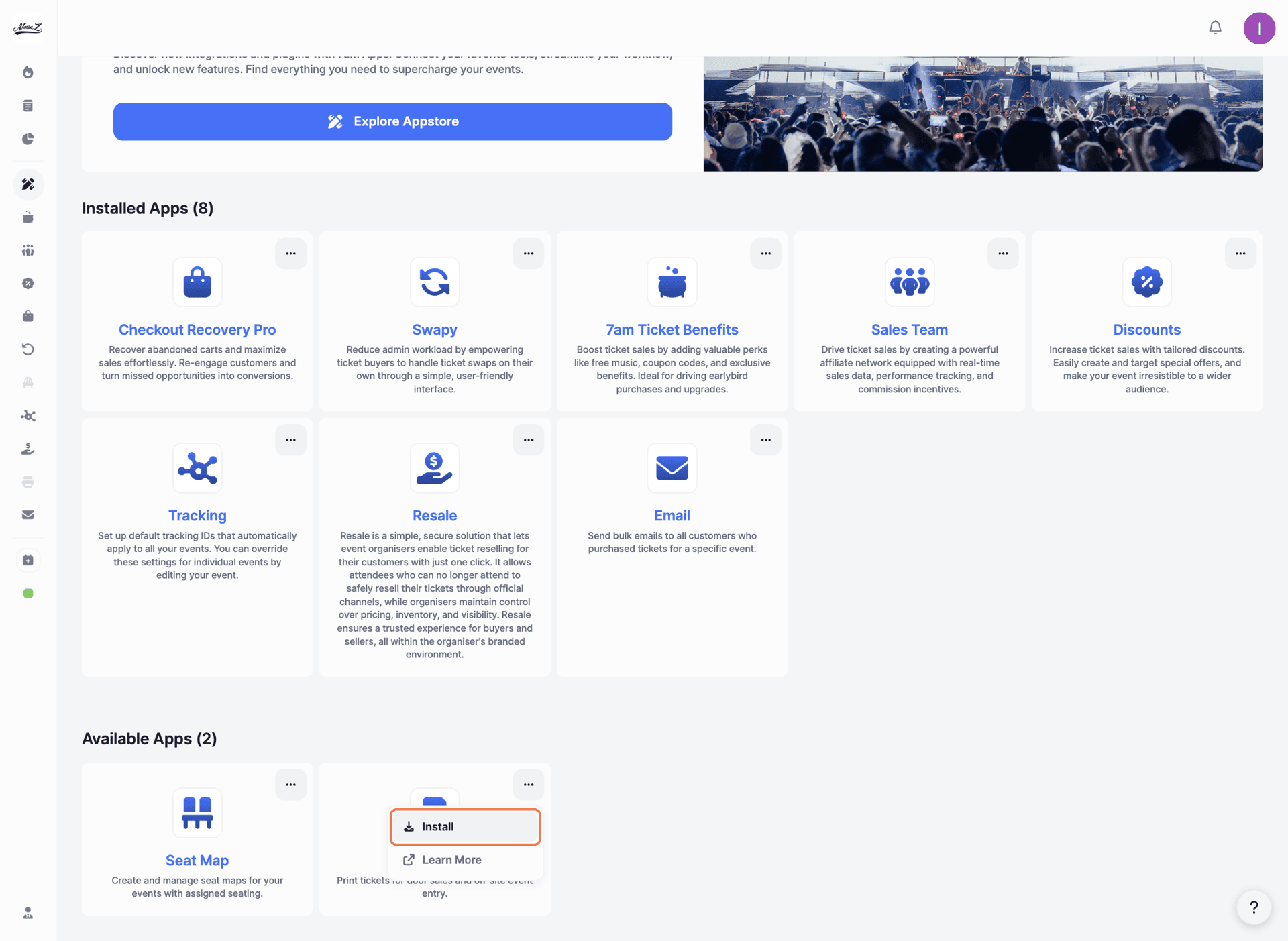
Click 'Install'.
A confirmation window will appear. Click 'Install' to confirm.
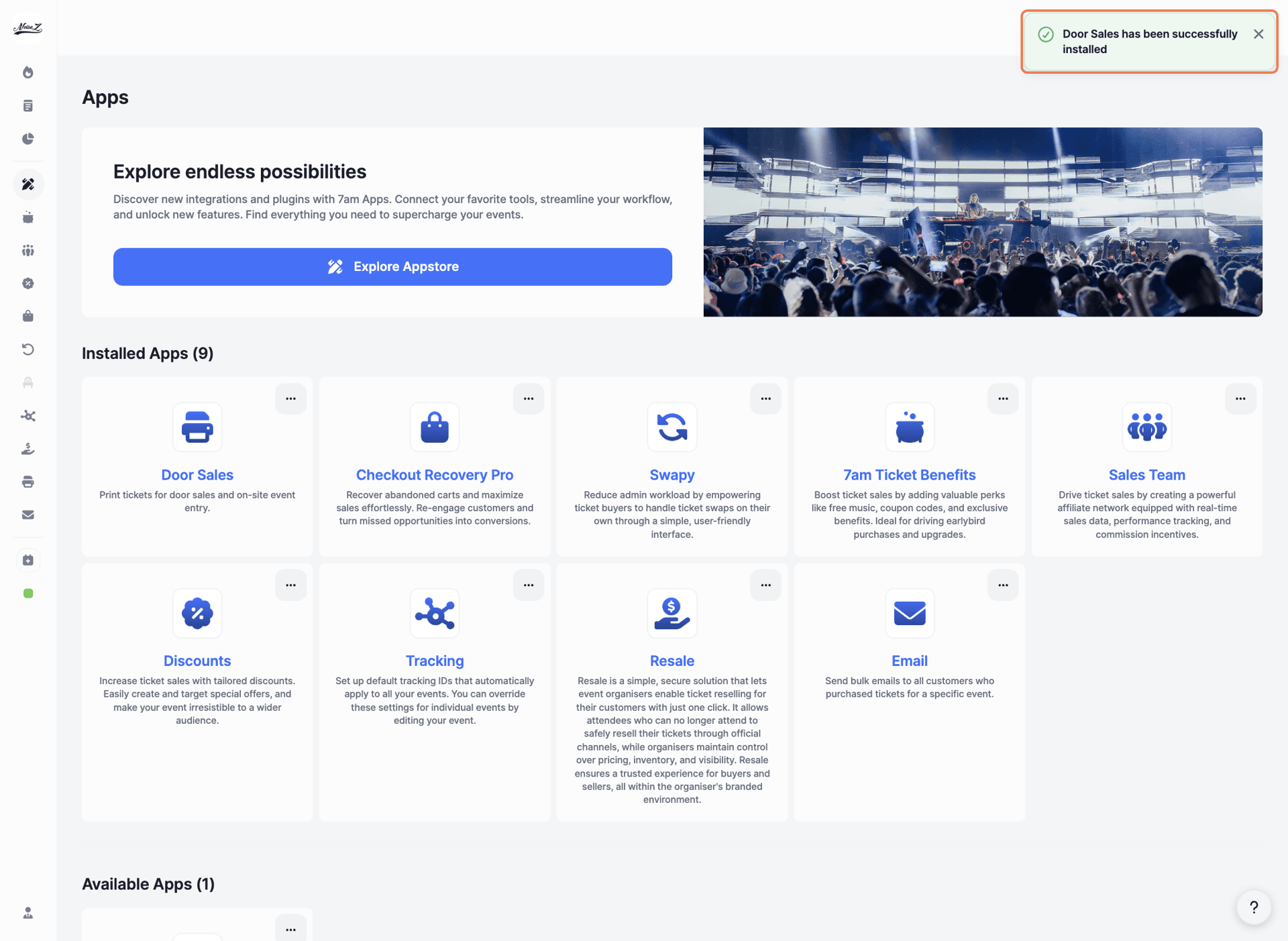
You'll see a success message: 'Door Sales has been successfully installed'. The app will now appear under 'Installed Apps'.
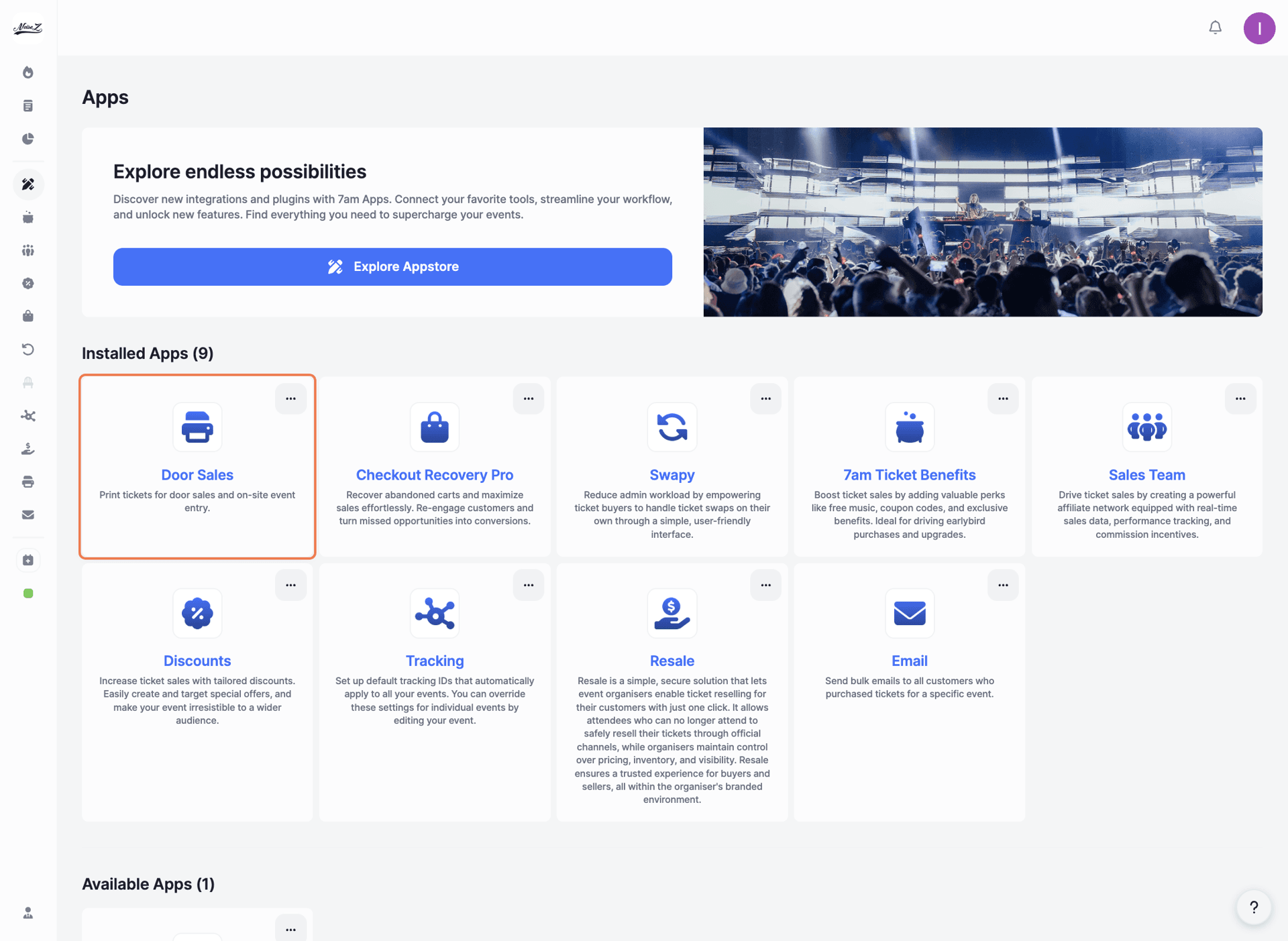
Click on 'Door Sales' under your Installed Apps.
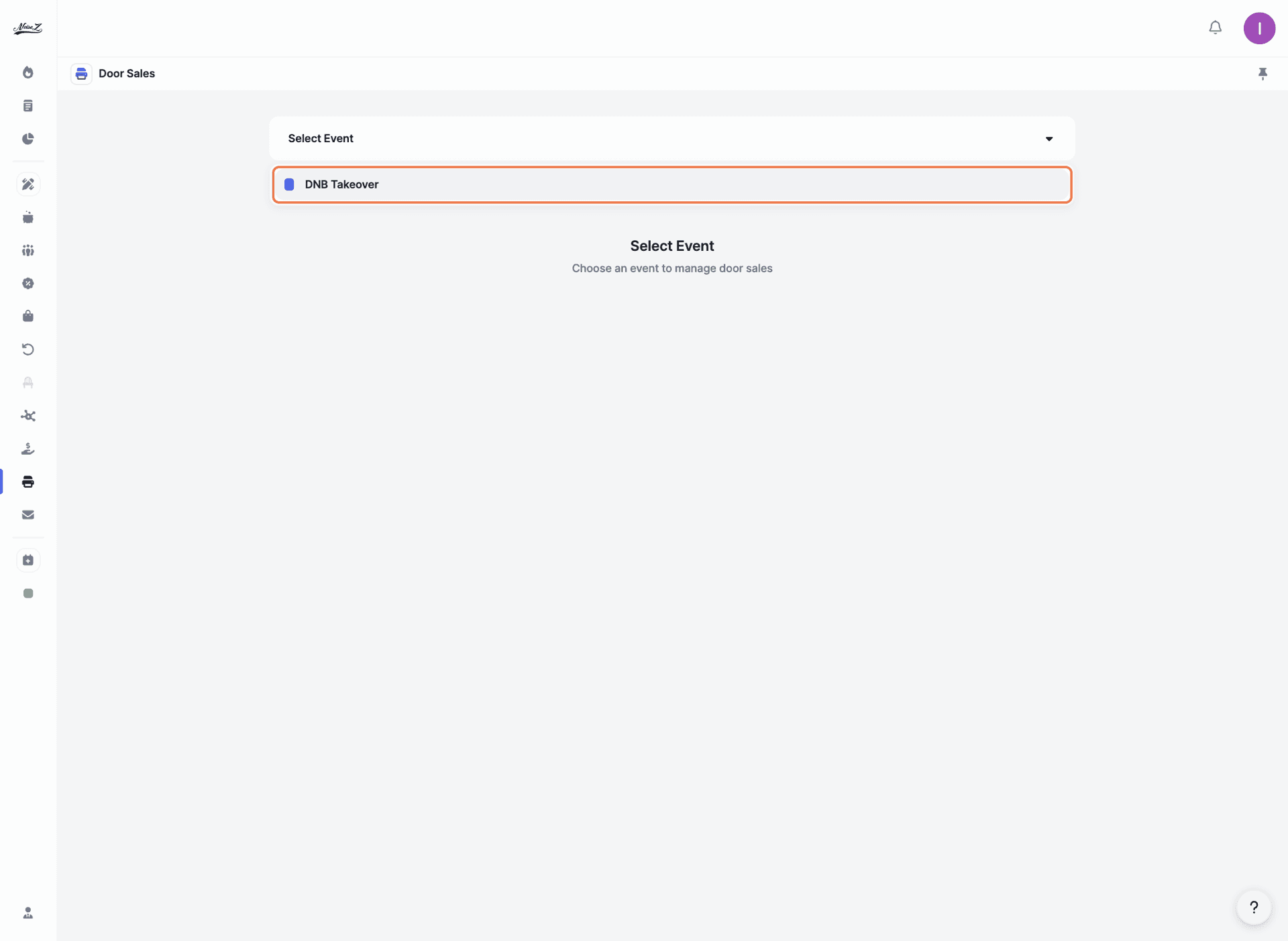
Select an event to manage door sales.
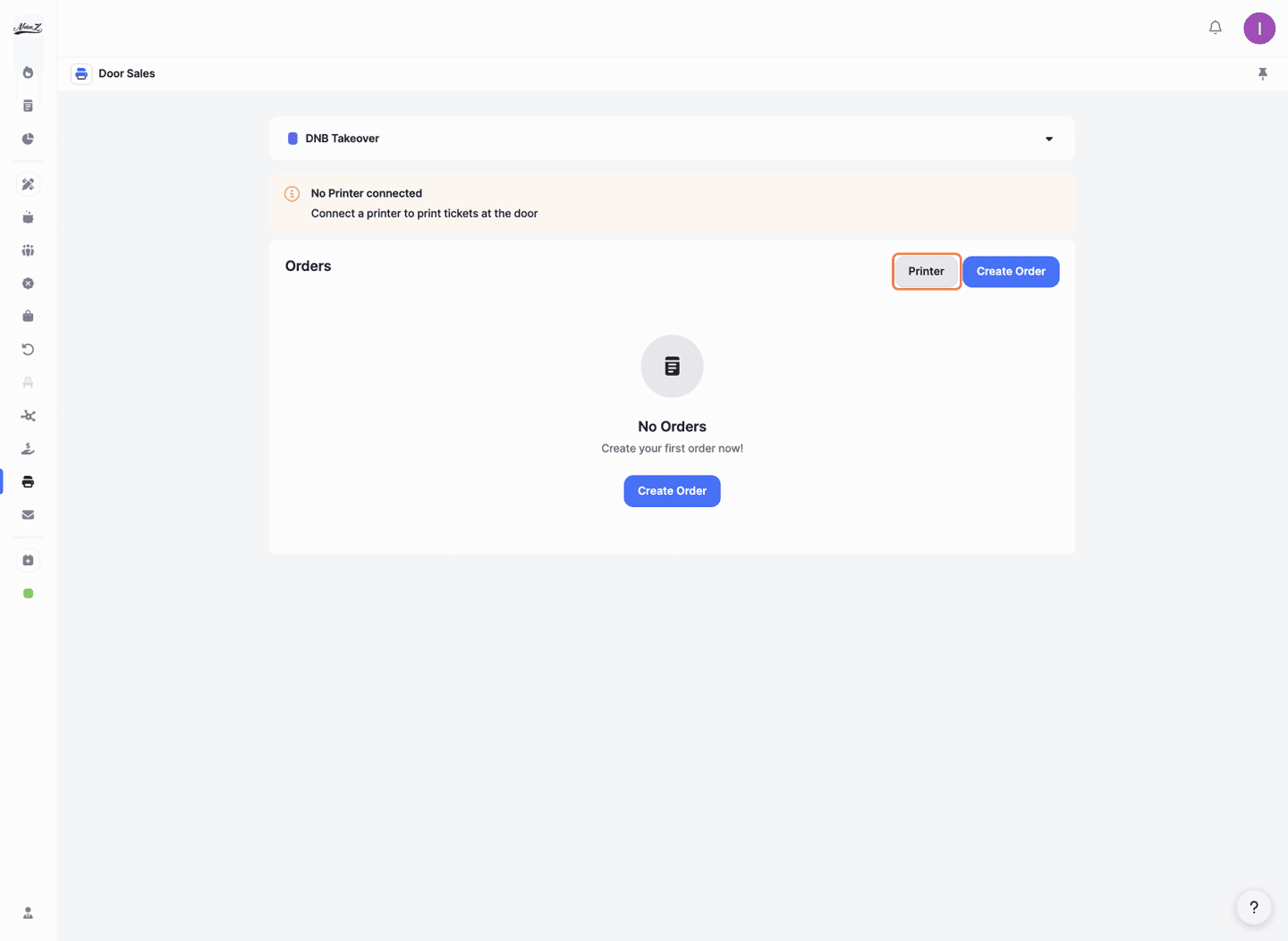
You'll see the main screen with two options: 'Printer' and 'Create Order'.
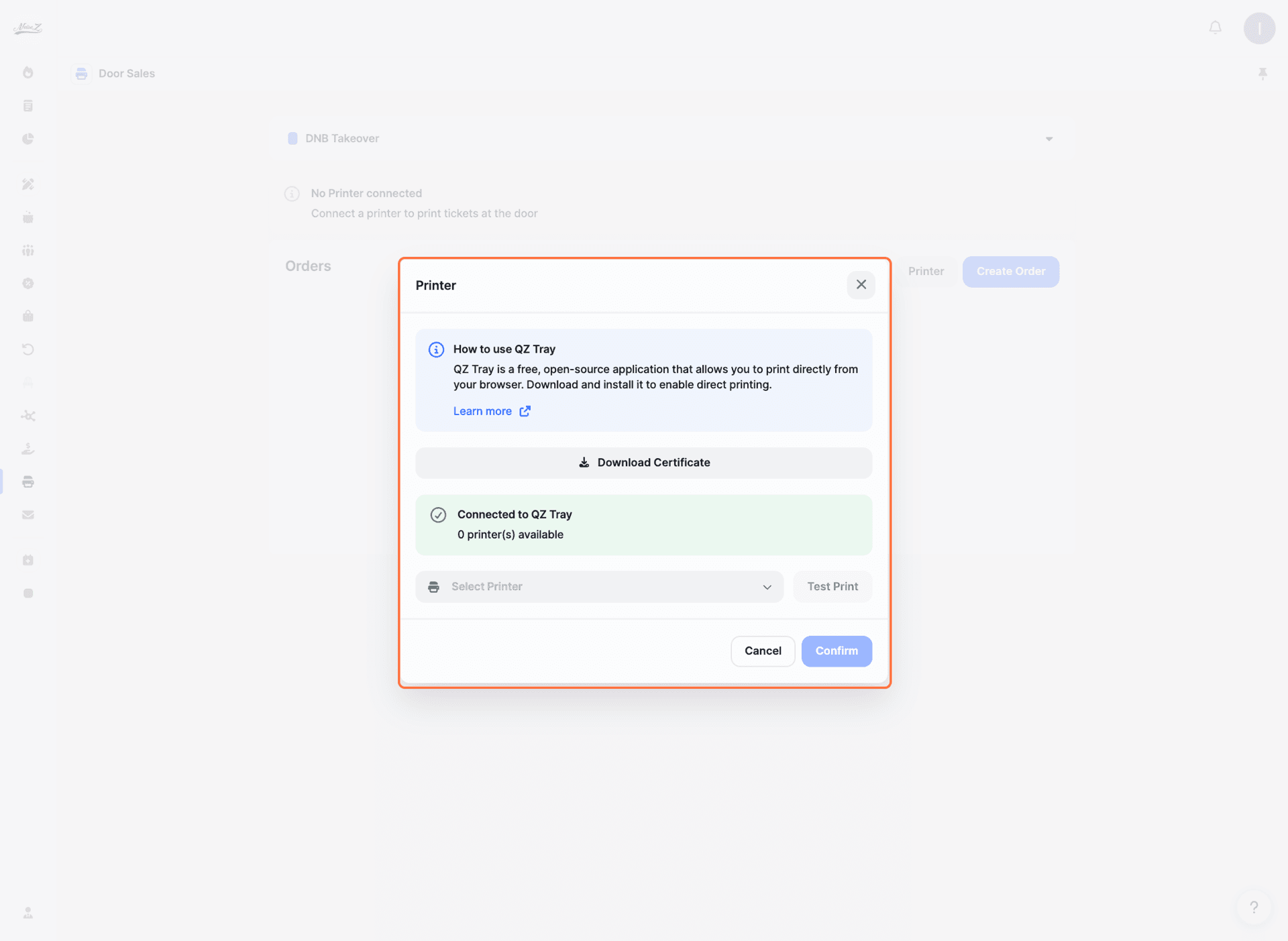
To print tickets directly at the door, you'll need to set up QZ Tray, a free, open-source application that allows you to print directly from your browser.
Click on 'Printer'.
A window will open where you can download and install QZ Tray (click 'Learn more' for detailed instructions), download the certificate, select your printer from the list, and run a test print to make sure everything is working.
Note: Make sure QZ Tray is running on your computer. If you see a warning that says 'QZ Tray is not running', start the application.
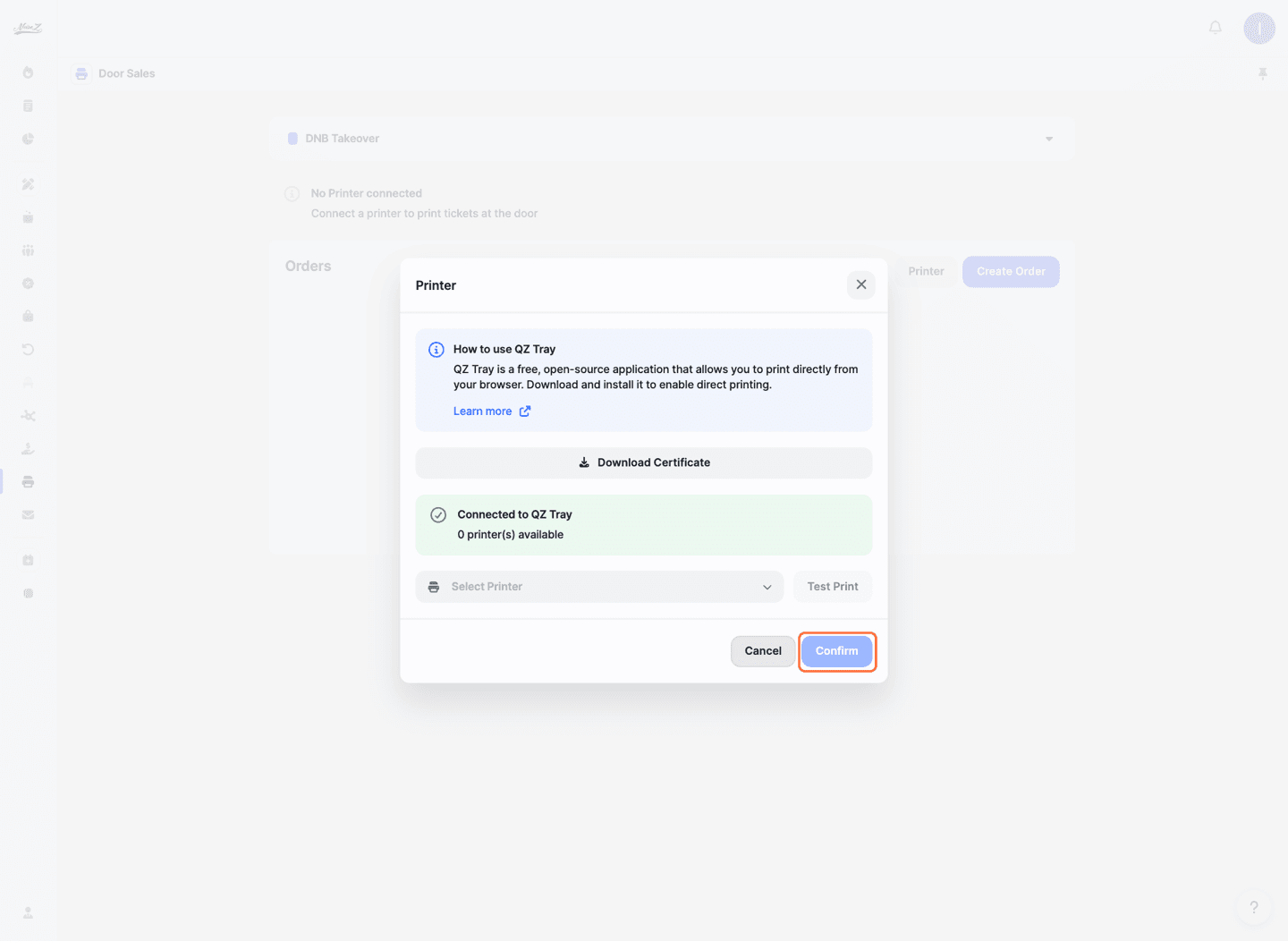
Click 'Confirm' to save your printer settings.
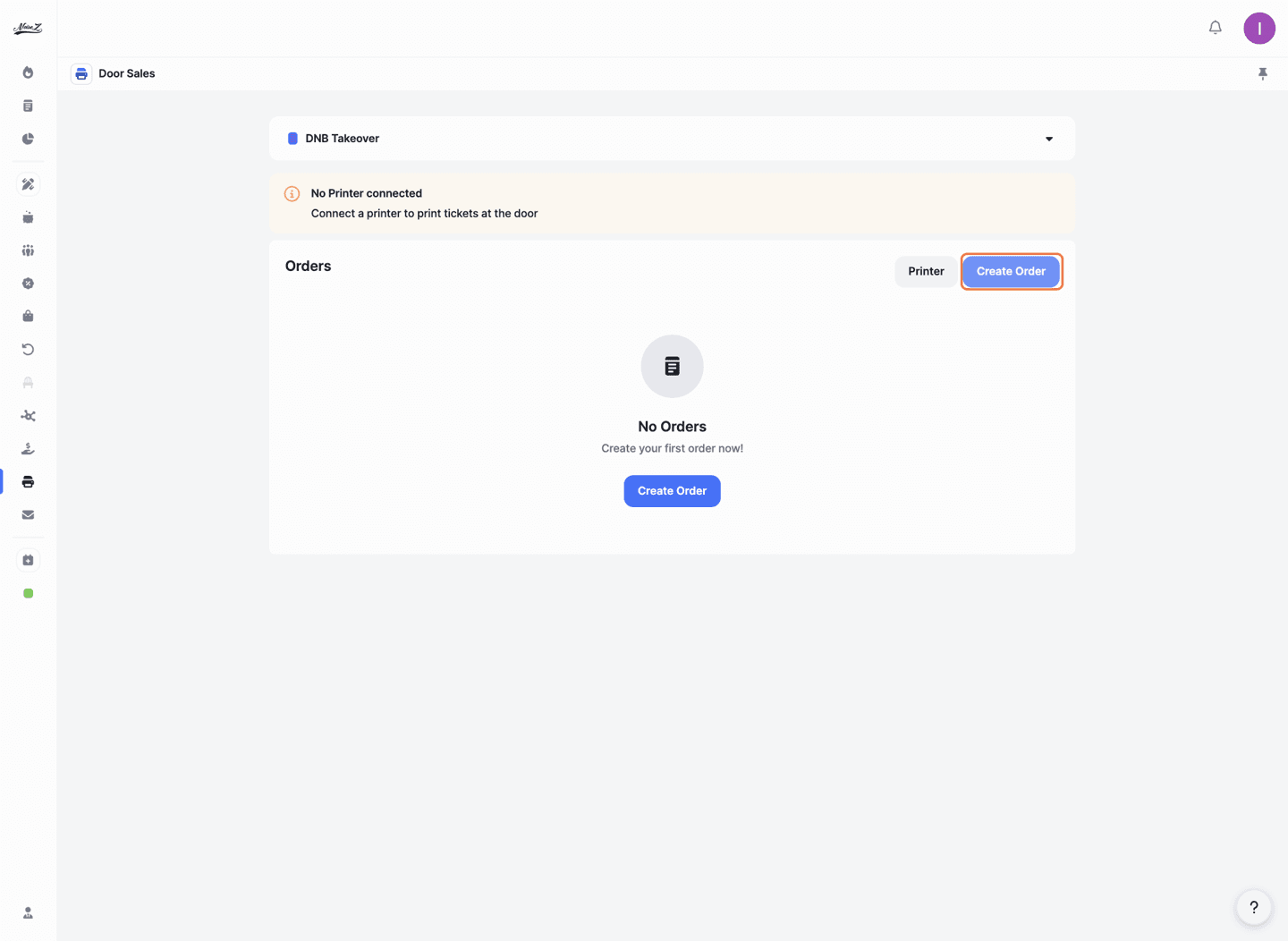
Click on 'Create Order'.
You'll see a list of all the tickets available for this event, including their names and prices.
Use the '+' and '-' buttons to select the quantity for each ticket type.
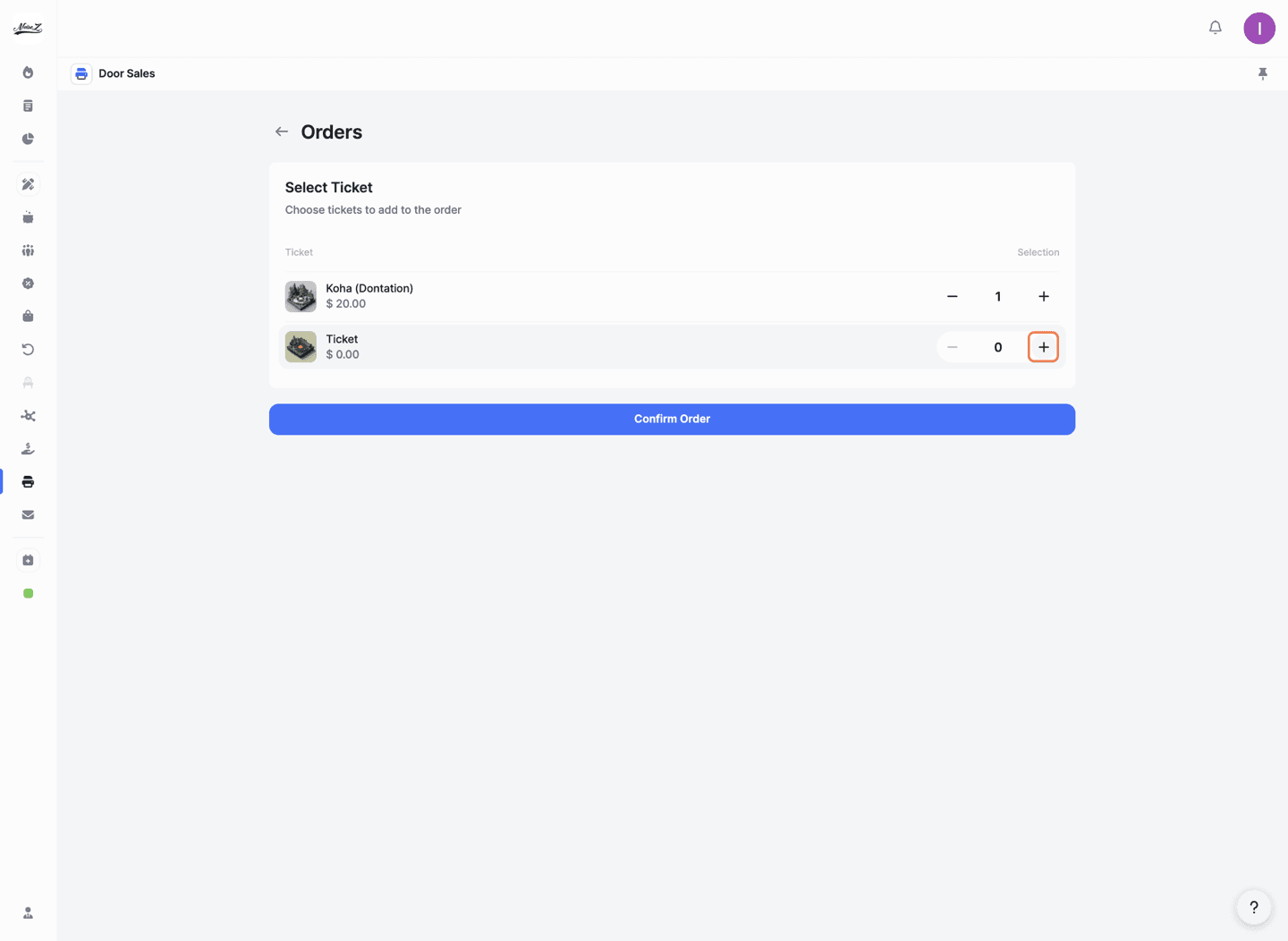
Click 'Confirm Order'.
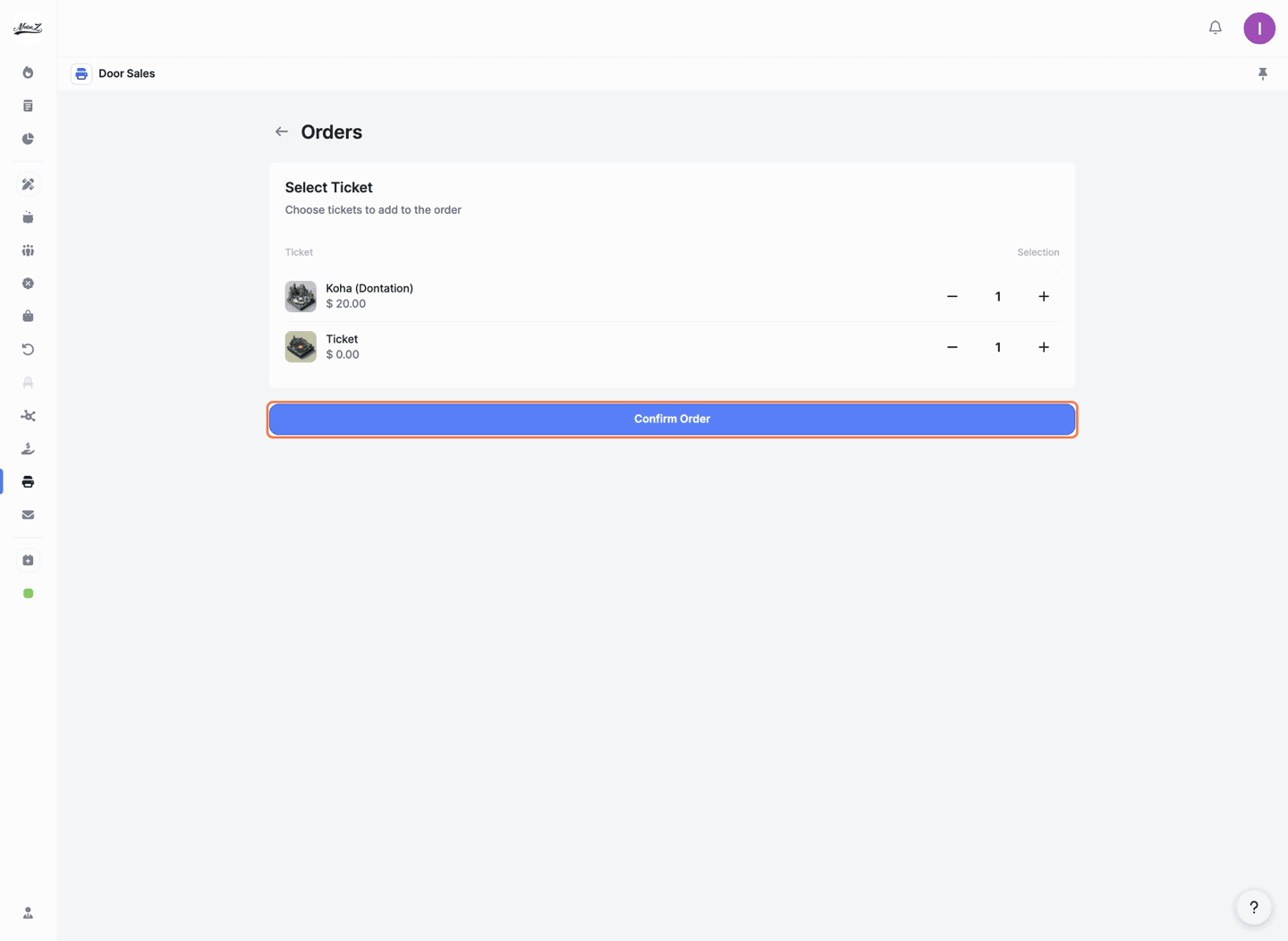
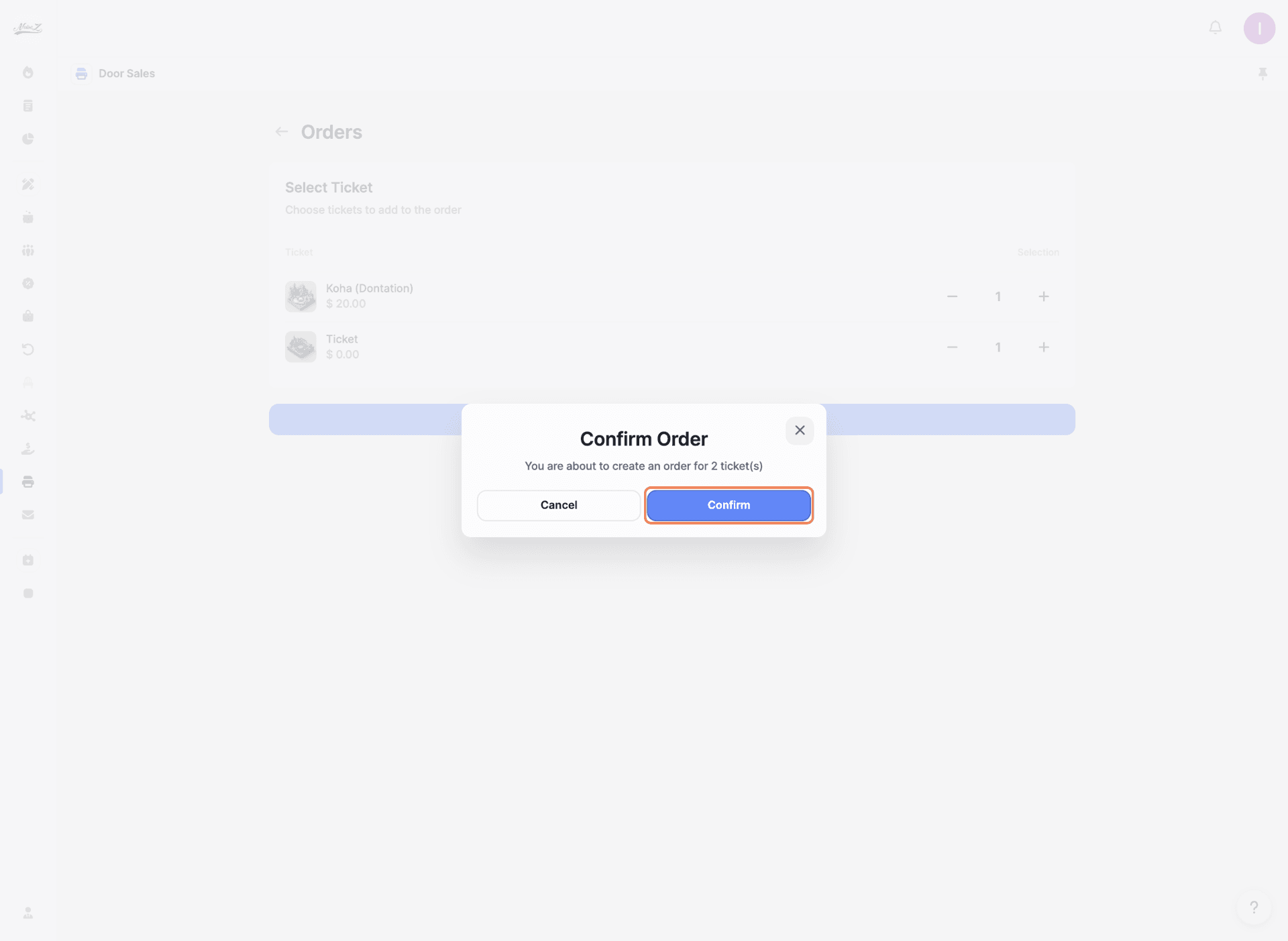
A confirmation window will appear showing the total number of tickets. Click 'Confirm' to complete the order.
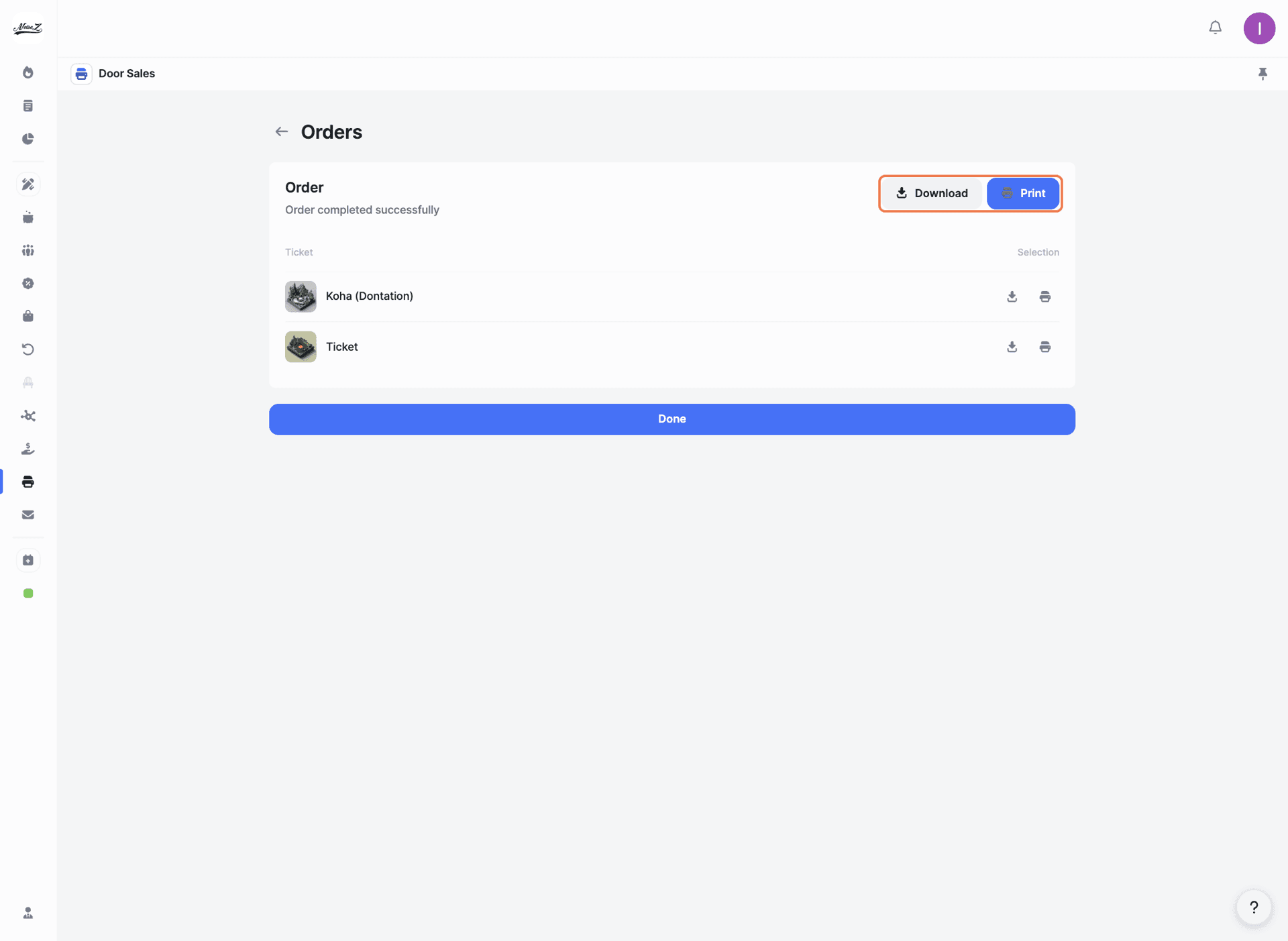
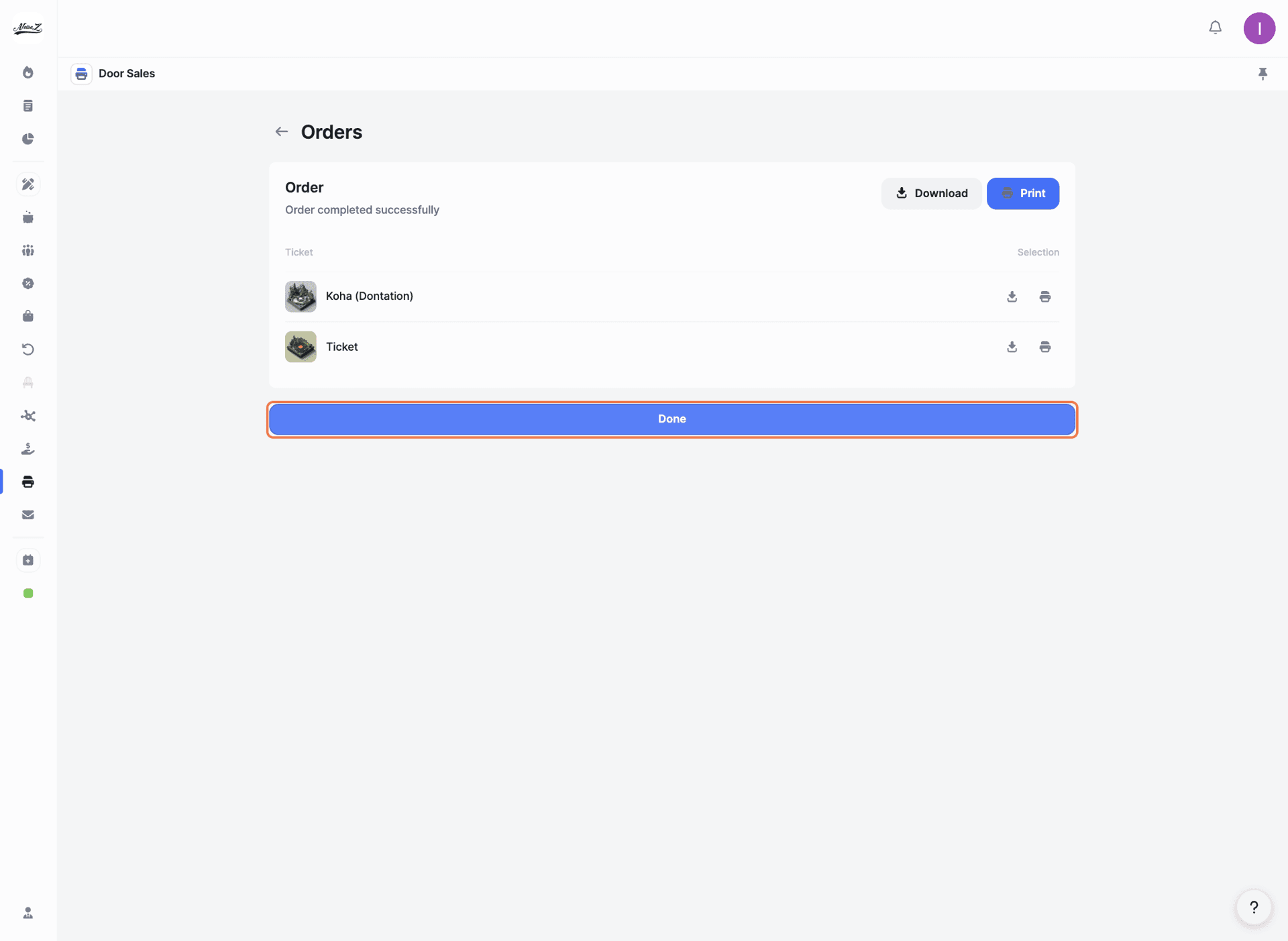
You'll see a success message and the order will appear on screen.
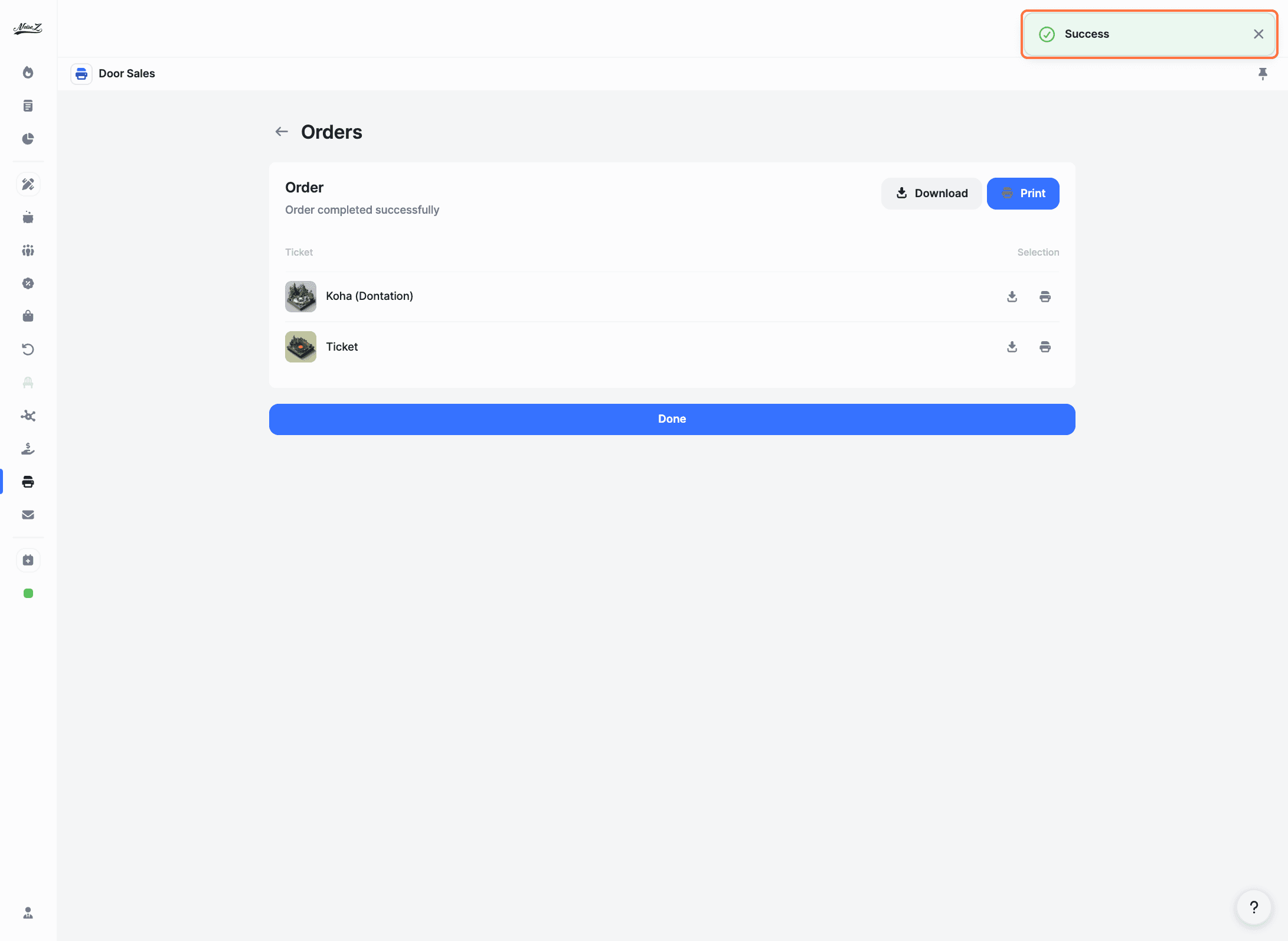
From here, you have three options:
Do I need QZ Tray to use Door Sales?
Only if you want to print tickets directly at the door. You can still create orders and download them as PDFs without QZ Tray.
What if QZ Tray isn't detecting my printer?
Make sure QZ Tray is running on your computer and that your printer is properly connected. Try restarting QZ Tray and refreshing the page.
Can I create orders for different ticket types in the same order?
Yes! You can add multiple ticket types and quantities to a single order before confirming.
Explore More
View All